When in the Edit mode you view the scene through the free camera.
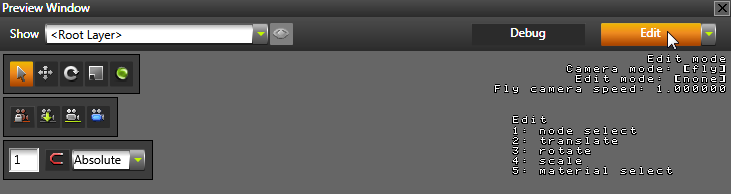
Use these free camera controls to move around in the Preview.
| Control | Description |
|---|---|
| W | Move forward. Hold down Shift to double the speed. |
| S | Move backward. Hold down Shift to double the speed. |
| A | Move left. Hold down Shift to double the speed. |
| D | Move right. Hold down Shift to double the speed. |
| Q | Tilt left. |
| E | Tilt right. |
| Click and drag the left mouse button | Rotate |
| Click and drag the right mouse button | Pan |
| Mouse scroll wheel | Set camera speed. |
| Hold down Z | Activate the orbit camera. Use the orbit camera to rotate around the center point of the Preview. |
| Hold down Z and mouse scroll wheel | Zoom |
| F | Focus on the object selected in the Project. |
| Shift+F | After focusing on the object selected in the Project, focus out. |
 in the Preview, to save the values of the free camera to the camera in your scene.